Documentation
Everything you need to know about using Perch to browse Mastodon and Bluesky.
Installation
macOS
The fastest way to install on macOS — uses pre-built binaries:
brew install ricardodantas/tap/perchLinux
Homebrew works on Linux too, or use Cargo:
brew install ricardodantas/tap/perchcargo install perchWindows
Install via Cargo or download the pre-built binary:
cargo install perchOr download perch-*-x86_64-pc-windows-msvc.zip from GitHub Releases.
From Source
git clone https://github.com/ricardodantas/perch.git
cd perch
cargo build --release
Requirements
- Rust 1.93+ (only for Cargo/source installation)
- macOS, Linux, or Windows
Quick Start
Install Perch
brew install ricardodantas/tap/perchAdd a Mastodon account
perch auth mastodon mastodon.socialOr add a Bluesky account
perch auth blueskyLaunch the TUI
perchAuthentication
🐘 Mastodon (OAuth)
perch auth mastodon <instance>This will:
- Register Perch with your Mastodon instance
- Open your browser for authorization
- Ask you to paste the authorization code
- Store credentials securely in your system keyring
Examples:
perch auth mastodon mastodon.social
perch auth mastodon fosstodon.org
perch auth mastodon hachyderm.io
🦋 Bluesky (App Password)
perch auth blueskyYou'll need an App Password from Bluesky settings.
TUI Mode
Launch the beautiful terminal interface:
perch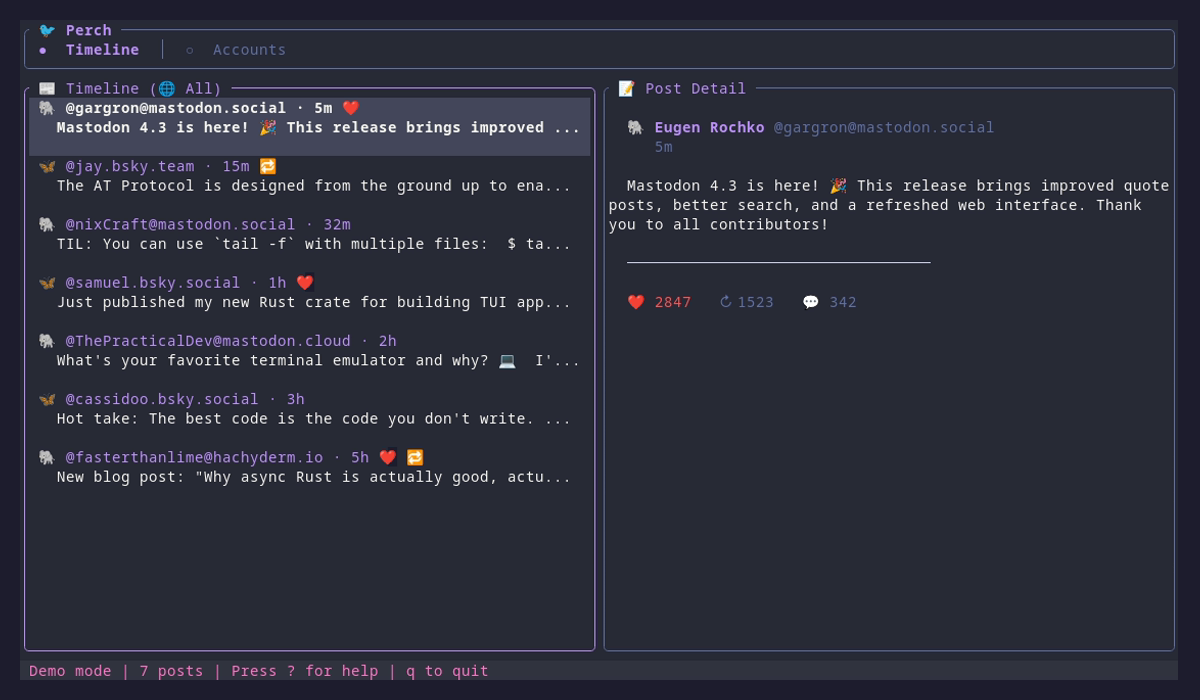
CLI Commands
Posting
# Post to all configured networks
perch post "Hello world!"

# Post to specific networks
perch post "Hello Fediverse!" --to mastodon
perch post "Hello everyone!" --to mastodon,bluesky

# Post with content warning
perch post "Spoiler content" --cw "Movie spoilers"
Timeline
# View home timeline (all networks)
perch timeline

# View specific network
perch timeline mastodon
perch timeline bluesky

# Limit posts
perch timeline --limit 50
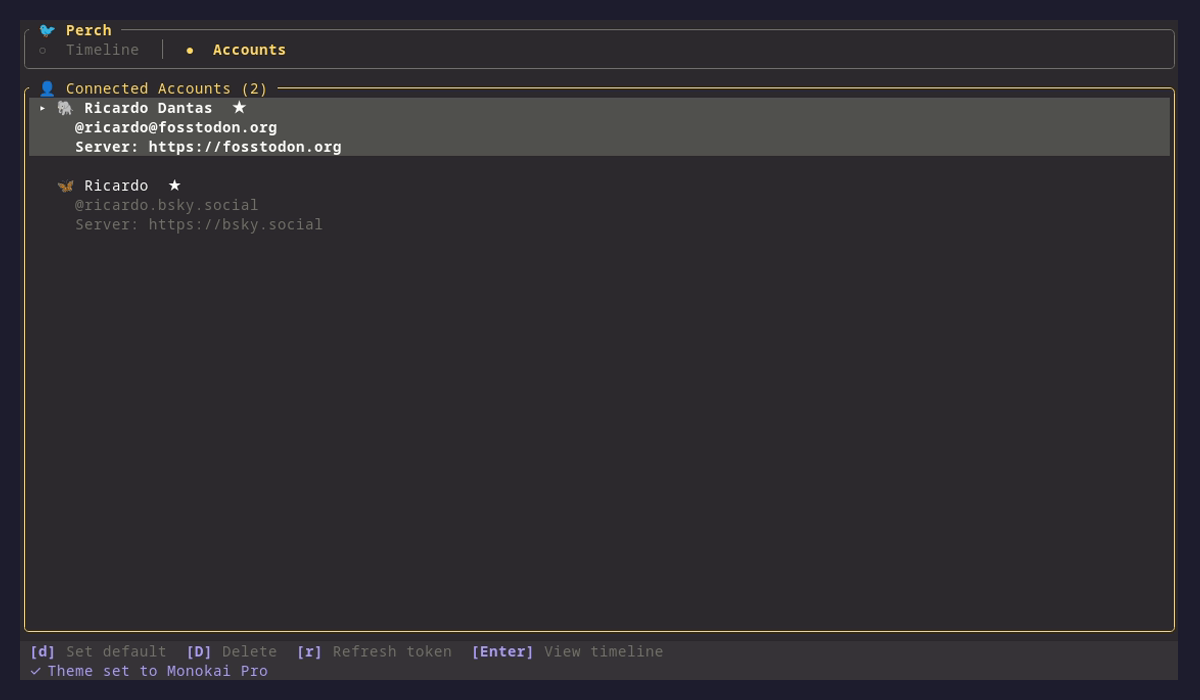
Account Management
# List all accounts
perch accounts

# Remove an account
perch accounts remove <account-id>
Posting
From the TUI
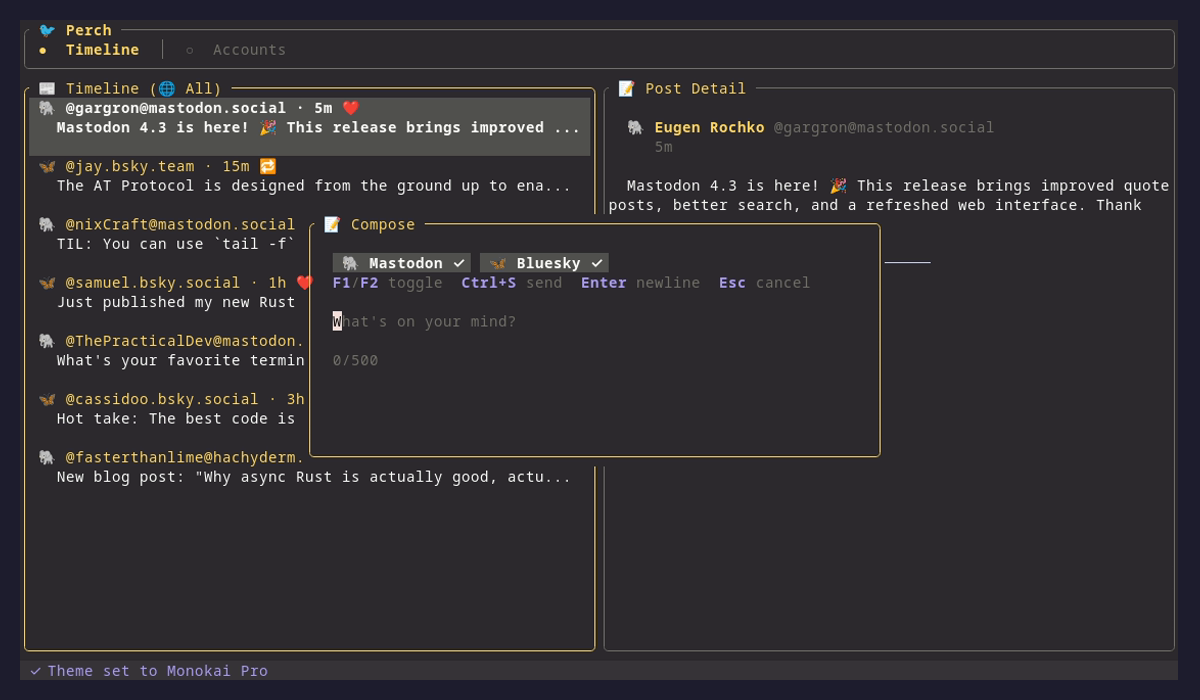
- Press n to open the compose dialog
- Type your message
- Toggle networks with F1/F2
- Press Ctrl+S to send
From the CLI
perch post "Your message here"Scheduled Posts
Schedule posts to be sent at a specific time. Perch stores scheduled posts locally and processes them when you run perch schedule run.
Schedule a Post
# Relative time
perch post "Good morning!" --schedule "in 2h"
perch post "Reminder!" --schedule "in 30 minutes"

# Specific date and time
perch post "Happy Friday!" --schedule "YYYY-MM-DD HH:MM"

# Time today (or tomorrow if past)
perch post "Lunch time!" --schedule "12:00"
Time Formats
| Format | Example |
|---|---|
| Relative (short) | "in 5m", "in 2h", "in 1d" |
| Relative (long) | "in 30 minutes", "in 2 hours" |
| Time today | "15:00", "3pm" |
| Date + time | "YYYY-MM-DD HH:MM" |
| ISO 8601 | "YYYY-MM-DDTHH:MM:00" |
Manage Scheduled Posts
# List pending posts
perch schedule list

# Cancel a scheduled post (use ID prefix)
perch schedule cancel abc123

# Process all due posts (one-time)
perch schedule run

# Run scheduler daemon (continuous)
perch schedule daemon

# Custom check interval (seconds)
perch schedule daemon --interval 30perch schedule daemon for continuous processing, or add perch schedule run to cron for periodic checks. Posts are stored locally in SQLite.
TUI Scheduling
You can also schedule posts directly from the TUI compose dialog:
| Key | Action |
|---|---|
| Tab | Toggle schedule input focus |
| F3 | Quick toggle schedule focus |
| F4 | Clear schedule (post immediately) |
| Enter | Confirm schedule input |
| Ctrl+U | Clear schedule input (while editing) |
Type schedule times like in 2h or 15:00 and see real-time validation. The dialog title changes to "📅 Schedule Post" when a schedule is set.
Timeline Actions
| Key | Action |
|---|---|
| n | Compose new post |
| R | Reply to post |
| r | Repost/unrepost (toggle) |
| L | Like/unlike post |
| b | Refresh timeline |
| o | Open in browser |
| f | Cycle filter (All/Mastodon/Bluesky) |
| / | Search posts |
Compose Keybindings
| Key | Action |
|---|---|
| F1 / F2 | Toggle Mastodon/Bluesky |
| Ctrl+S | Send post |
| Enter | New line |
| Esc | Cancel |
Configuration
Perch uses TOML for configuration. The config file is located at:
~/.config/perch/config.tomlExample Configuration
# Theme (dracula, nord, catppuccin-mocha, etc.)
theme = "dracula"

# Default visibility for posts
# Options: public, unlisted, private, direct
default_visibility = "public"

# Default networks to post to
default_networks = ["mastodon", "bluesky"]

# Number of posts to fetch
post_limit = 50
Themes
Perch includes 15 beautiful themes. Press t to open the theme picker, or set in config:
theme = "catppuccin-mocha"Available themes: dracula, one-dark-pro, nord, catppuccin-mocha, catppuccin-latte, gruvbox-dark, gruvbox-light, tokyo-night, solarized-dark, solarized-light, monokai-pro, rose-pine, kanagawa, everforest, cyberpunk